How to Run DeepSeek Locally in 2026: Ollama & LM Studio Setup for Complete Privacy
Disclosure: Some links in this article are affiliate links. If you click and make a purchase, we may earn a commission at no extra cost to you. This does not influence our editorial recommendations - we only recommend products and services we genuinely believe in. Read our full affiliate disclosure.
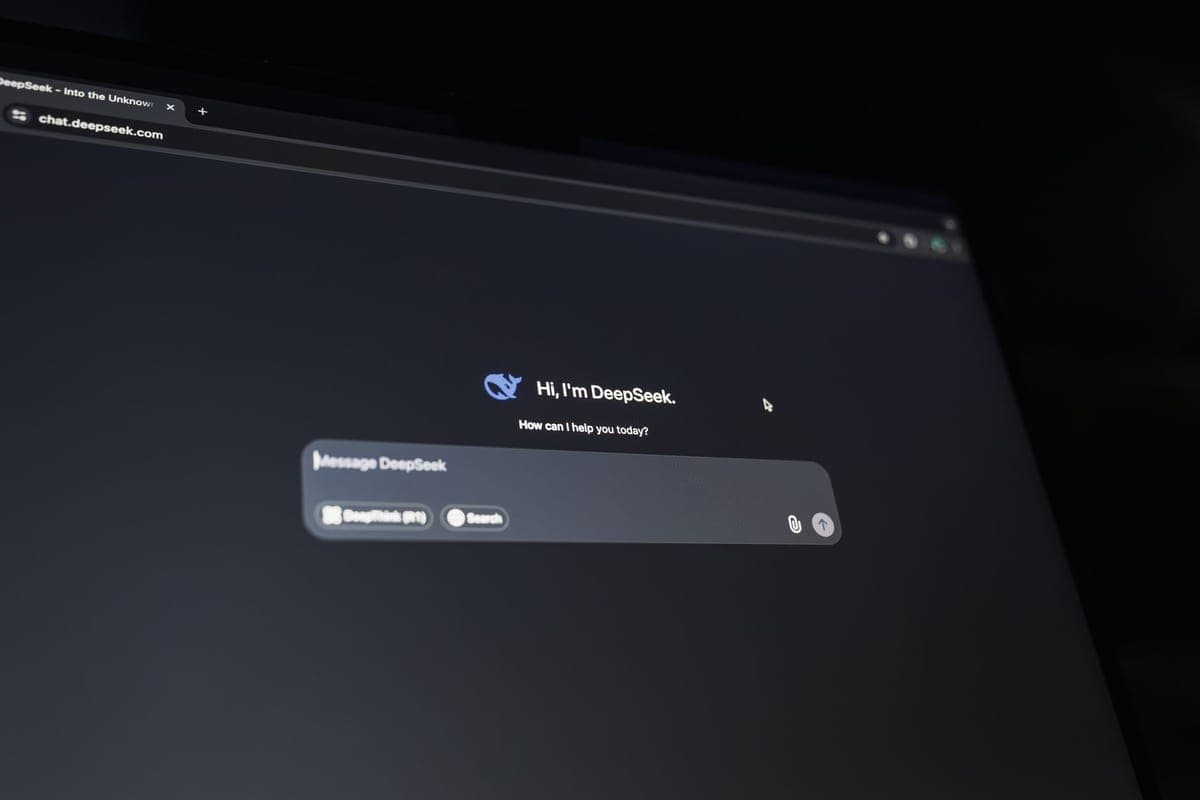
With rising data privacy concerns, API rate limits, and monthly subscription fatigue, running state-of-the-art open-weight models directly on your personal hardware has become the standard for developers, privacy-conscious professionals, and researchers in 2026.
DeepSeek (particularly DeepSeek-V3 and the reasoning-focused DeepSeek-R1 distilled architectures) delivers coding and logic capabilities rivaling proprietary models like OpenAI o1 and Claude 3.5 Sonnet - while requiring zero cloud connectivity.
This guide walks you through setting up and optimizing DeepSeek locally using the two premier runners: Ollama (for developers & CLI) and LM Studio (for an intuitive visual chat experience).
1. Hardware Requirements & Quantization Breakdown
You do not need an industrial datacenter to run DeepSeek. Thanks to 4-bit and 8-bit GGUF quantization, the distilled models run on standard consumer laptops:
| Model Variant | Parameter Count | Quantization (GGUF) | Min RAM / VRAM | Recommended Device | Tokens / Sec (Est.) |
|---|---|---|---|---|---|
| DeepSeek-R1-Distill-7B | 7 Billion | Q4_K_M | 8 GB RAM / 6 GB VRAM | M1/M2/M3 Mac, RTX 3060 | 35 – 55 tok/s |
| DeepSeek-R1-Distill-8B | 8 Billion | Q4_K_M | 10 GB RAM / 8 GB VRAM | M-Series Mac, RTX 4060 | 30 – 50 tok/s |
| DeepSeek-R1-Distill-14B | 14 Billion | Q4_K_M | 16 GB RAM / 12 GB VRAM | 16GB+ Mac, RTX 4070 | 25 – 40 tok/s |
| DeepSeek-R1-Distill-32B | 32 Billion | Q4_K_M | 32 GB RAM / 24 GB VRAM | 32GB Mac Studio, RTX 3090/4090 | 18 – 30 tok/s |
| DeepSeek-V3 (Full MoE) | 671 Billion | Q4_K_M | 400+ GB VRAM | Multi-GPU Server (8x H100) | Cloud / Self-host |
2. Method 1: Setting Up DeepSeek with Ollama (Fastest for Developers)
Ollama is an ultra-lightweight open-source model manager that runs as a system daemon on macOS, Linux, and Windows.
Step 1: Install Ollama
Download the installer for your operating system from the official website (ollama.com) and run the setup wizard.
Step 2: Download and Run the DeepSeek Model
Open your terminal (macOS/Linux) or PowerShell (Windows) and type:
Ollama will stream the quantized weights directly from the registry. Once the download finishes, you are dropped into an immediate interactive prompt.
Step 3: Connect to Open-WebUI or IDEs
Ollama exposes a standard OpenAI-compatible API endpoint at http://localhost:11434/v1. You can plug this directly into:
- Cursor / VS Code: Set Ollama as your custom local AI provider.
- Open-WebUI: A stunning self-hosted browser frontend that replicates ChatGPT.
- Obsidian: Local note summarization without internet access.
3. Method 2: Setting Up DeepSeek with LM Studio (Best Graphical Interface)
If you prefer a clean desktop application with parameter sliders, system prompt customizers, and one-click model searching, LM Studio is the premier choice.
Step 1: Install LM Studio
Visit lmstudio.ai and download the release for macOS (Apple Silicon/Intel), Windows, or Linux.
Step 2: Search and Select DeepSeek-R1
- Click the Magnifying Glass (Search) icon in the left navigation sidebar.
- In the search bar, type
deepseek-r1ordeepseek-v3. - Filter by GGUF models.
- Select the quantized size matching your RAM: - For an 8GB or 16GB laptop, choose Q4_K_M (balanced quality and speed). - Click the green Download button.
Step 3: Load Model into Chat
- Click the Chat icon in the sidebar.
- At the top of the window, click Select a model to load and choose your downloaded DeepSeek model.
- In the right-hand panel, verify that GPU Offload is set to
Maxto offload model layers into your dedicated graphics card or unified memory. - Type your prompt. DeepSeek-R1 will output its internal
4. Privacy & Performance Optimization Checklist
To ensure maximum performance and absolute zero telemetry leaks:
- Verify Complete Offline Capability: Disconnect Wi-Fi or turn on Airplane mode, then issue a prompt. DeepSeek will generate answers at full speed.
- Context Window Allocation: By default, local runners allocate a 2,048 or 4,096 token context. In LM Studio settings or via Ollama's
Modelfile, increasenum_ctxto16384or32768if you have 16GB+ RAM to analyze long code files. - Thermal Management: On laptops running lengthy 32B model generations, use a laptop stand to prevent CPU/GPU thermal throttling.
Conclusion
Running DeepSeek locally provides the ultimate combination of data confidentiality, unlimited generation without monthly fees, and immunity to third-party outages. Whether using Ollama for background terminal workflows or LM Studio for everyday conversational AI, local LLMs represent the future of autonomous computing.
Explore our related benchmarks on DeepSeek-R1 vs OpenAI o1 and Cursor vs Windsurf vs Copilot.
Frequently Asked Questions
Yes. Once you download the model weights (via Ollama or LM Studio in GGUF format), DeepSeek runs entirely on your local machine's CPU and GPU memory. You can disconnect your internet completely and still query the model with zero data leaving your hardware.
For quantized distilled models (like DeepSeek-R1-Distill-Qwen-7B or 8B), you need 8GB to 16GB of system RAM or a GPU with 6GB+ VRAM (Nvidia RTX 3060/4060, Apple Silicon M1/M2/M3/M4 with unified memory). For the 14B and 32B models, 16GB to 32GB of RAM is recommended. The full 671B model requires enterprise multi-GPU clusters, but the distilled 7B, 14B, and 32B variants run smoothly on consumer hardware.
LM Studio provides a complete graphical user interface (GUI) with one-click model downloads, hardware detection, and a ChatGPT-style chat interface, making it ideal for non-technical users. Ollama is CLI-based and ideal for developers who want a background REST API service running on port 11434 to connect with IDEs or web scrapers.
Yes, 100% free. The model weights are open-weight under permissive licenses. You pay nothing for tokens, prompts, or ongoing subscriptions.

Alex Morgan is the founder and lead editor of RemoGrid. With over six years of hands-on experience in remote operations, cross-border freelance workflows, and AI tool benchmarking, Alex independently tests and audits software platforms to help modern digital workers build sustainable online income streams. He regularly reviews international payment systems (Wise, Stripe, Payoneer, local mobile wallets) and conducts real-world usability benchmarks across AI productivity tools.