
8 Best Free Remote Desktop Software in 2026 (Fast & Secure)
Disclosure: Some links in this article are affiliate links. If you click and make a purchase, we may earn a commission at no extra cost to you. This does not influence our editorial recommendations - we only recommend products and services we genuinely believe in. Read our full affiliate disclosure.
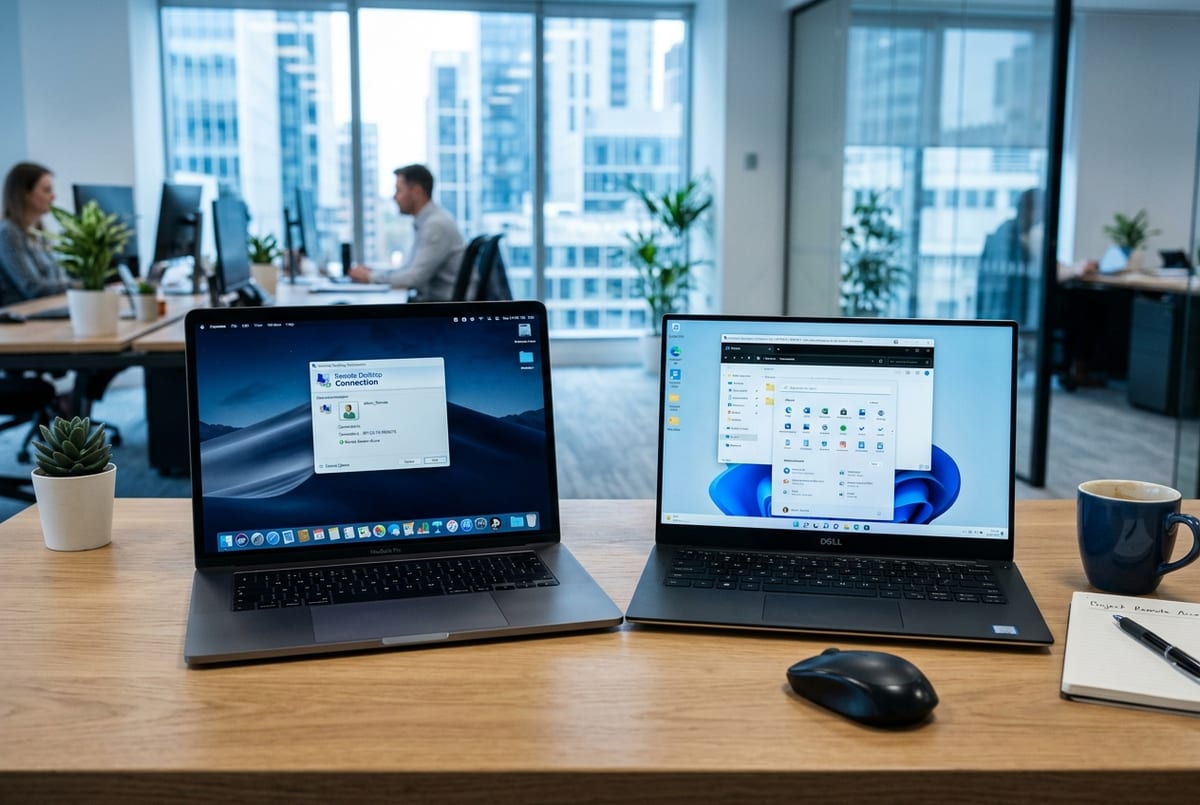
Selecting the best free remote desktop software is essential for remote employees, digital nomads, freelancers, and IT support technicians who need seamless, secure access to distant computers. Whether you need to control your powerful home office workstation while traveling with a lightweight laptop, provide remote tech support to family members, or manage headless cloud servers, modern remote access software delivers near-zero latency, crystal-clear 60 FPS video streaming, and robust multi-factor encryption without requiring expensive enterprise licenses.
However, choosing the right free remote desktop solution requires balancing speed, privacy, operating system compatibility, and anti-commercial-use restrictions. Some legacy tools frequently trigger false "commercial use suspected" connection cutoffs, while others lack multi-monitor support or audio pass-through.
This comprehensive 2026 guide evaluates the 8 best free remote desktop software solutions, comparing performance benchmarks, encryption protocols, unattended access capabilities, and step-by-step setup configurations.
Comparison Matrix: Top 8 Free Remote Desktop Tools (2026)
The table below provides a detailed comparison of the best free remote desktop tools across key performance metrics:
| Software Name | License / Cost | Max FPS / Latency | Multi-Monitor Support? | End-to-End Encryption | OS Compatibility | Standout Advantage |
|---|---|---|---|---|---|---|
| RustDesk | 100% Open Source | 60 FPS / Ultra-Low | Yes (Full Toggle) | TLS 1.3 + ChaCha20 | Win, Mac, Linux, Android, iOS | Self-hostable server with total data ownership |
| Chrome Remote Desktop | 100% Free Forever | 30–60 FPS / Low | Yes (Multi-window) | AES-256 via WebRTC | Cross-platform (Chrome) | Zero-friction browser-based setup |
| AnyDesk (Free Tier) | Free (Personal) | 60 FPS / Lowest | Yes | TLS 1.2 + RSA-2048 | Win, Mac, Linux, Mobile | Proprietary DeskRT codec for slow networks |
| Supremo Remote Desktop | Free (Personal) | 30–60 FPS / Low | Yes | AES-256 + 2FA | Windows, macOS, Linux, Mobile | Portable executable, no installation needed |
| Microsoft Remote Desktop (RDP) | Free (Windows Pro) | 60 FPS / Direct LAN | Yes (Multi-monitor) | CredSSP + TLS | Windows (Host), All (Clients) | Built directly into Windows OS kernel |
| TightVNC | 100% Open Source | 15–30 FPS / Moderate | Yes (Basic) | Optional SSH Tunnel | Windows, Linux | Extremely lightweight legacy client |
| TeamViewer (Free Personal) | Free (Non-Commercial) | 60 FPS / Low | Yes | 256-bit AES + 2FA | Win, Mac, Linux, Mobile | Feature-rich, but strict commercial flags |
| UltraViewer | Free for basic use | 30 FPS / Moderate | Yes | Standard SSL | Windows | Built-in live chat box for support |
️ Top 8 Free Remote Desktop Software Reviews
1. RustDesk - The Best Overall Free & Open-Source Solution
RustDesk has emerged as the premier open-source alternative to TeamViewer and AnyDesk. Written in Rust for maximum memory safety and processing speed, RustDesk delivers full-featured remote desktop management without corporate telemetry or aggressive subscription nag screens.
- Why It's #1: You can either use their public rendezvous relay servers for free or spin up your own private Docker relay server in 5 minutes, giving you 100% data sovereignty and unlimited bandwidth.
- Key Features: Direct IP-to-IP connections on local networks, seamless bidirectional file transfer, clipboard synchronization, remote audio streaming, and cross-platform hardware acceleration.
- Platforms: Windows, macOS, Ubuntu/Debian/Arch Linux, Android, and iOS.
- Best For: Privacy-conscious professionals, developers, and remote workers who want enterprise-grade reliability without subscription traps.
2. Chrome Remote Desktop - Easiest Zero-Cost Setup
If you already use Google Chrome, Chrome Remote Desktop is the simplest and most accessible tool for remote machine control.
- How It Works: Install a lightweight Chrome extension on the host machine, generate a 6-digit access PIN, and control the computer from any Chrome browser or mobile device worldwide.
- Key Features: Supports unattended access, clipboard copy-pasting, multi-monitor display switching, and responsive resizing.
- Why Users Love It: It never expires, never displays commercial-use warning banners, and runs seamlessly behind complex corporate firewalls and NAT routers via WebSockets.
- Best For: Casual remote workers and non-technical users seeking instant connection without configuring router port-forwarding.
3. AnyDesk (Free Personal Tier) - Lowest Latency on Weak Connections
AnyDesk utilizes a proprietary video codec called DeskRT, specifically designed to compress graphical interfaces with minimal bandwidth overhead.
- Performance: Capable of sustaining smooth 60 FPS screen rendering even on unstable 3G/4G cellular connections or congested hotel Wi-Fi.
- Key Features: Interactive whiteboard drawing, remote sound transmission, unattended access password management, and ultra-fast file transfer.
- Caution: The free version is strictly intended for non-commercial personal usage. Connecting to multiple corporate domain workstations may trigger pop-up reminders. Pair it with our recommended NordVPN guide for secure encrypted tunneling.
4. Supremo Remote Desktop - Lightweight Portable Access
Supremo is an ultra-lightweight remote assistance tool that does not even require installation to run.
- Portability: The executable is under 10MB; you can run it directly from a USB flash drive to assist clients or family members instantly.
- Security: Connections are protected by AES-256 encryption and dynamic 4-digit security passwords that rotate after each session.
- Free Allowance: 100% free for non-commercial, personal remote connections.
- Best For: Ad-hoc troubleshooting and quick support without altering host system registries.
5. Microsoft Remote Desktop (RDP) - Built Directly into Windows Pro
For Windows-to-Windows environments, Microsoft's native Remote Desktop Protocol (RDP) provides the smoothest host integration.
- OS Integration: Because RDP is integrated into the Windows OS kernel, it leverages direct DirectX hardware rendering, making remote usage feel almost indistinguishable from sitting directly in front of the physical PC.
- Setup Requirements: The host computer must be running Windows 10/11 Pro, Enterprise, or Education (Windows Home edition can act only as a client, not a host).
- Security Note: Never expose port 3389 directly to the public internet. Always route your RDP connection through a secure home VPN (like WireGuard or Tailscale).
6. TightVNC - Lightweight Legacy Open-Source Tool
TightVNC is a battle-tested, classic remote control package based on the Virtual Network Computing (VNC) protocol.
- Resource Footprint: Consumes under 20MB of system RAM, making it the ideal choice for managing old legacy hardware, remote industrial PCs, or lightweight Linux workstations.
- Configuration: Requires manual port configuration and SSH tunneling for public internet security, as standard VNC traffic is unencrypted by default.
7. TeamViewer (Free Personal Edition) - Feature-Rich Giant
TeamViewer remains one of the most widely recognized remote control applications, offering an extensive feature suite including session recording, multi-party conferencing, and drag-and-drop file transfer.
- Limitations: TeamViewer's automated detection algorithms frequently flag personal users as "commercial," terminating sessions after 60 seconds.
- Verdict: Excellent feature set, but users needing uninterrupted daily connectivity should prioritize RustDesk or Chrome Remote Desktop.
8. UltraViewer - Best for Remote Customer Assistance
UltraViewer is designed specifically for technical support scenarios where you need to chat with the remote user while resolving computer issues.
- Key Features: A built-in live chat window lets you communicate in real time, request administrative permissions, and share instructional screenshots.
- Platform: Currently optimized exclusively for Windows environments.
Security Best Practices for Remote Desktop Connections
Remote desktop software provides unrestricted access to your files, personal passwords, and financial information. Protect your machines by enforcing these mandatory safeguards:
- Use Mesh VPNs (Tailscale / ZeroTier): Instead of opening public router ports, install a free mesh VPN like Tailscale. This assigns your remote computer a private IP address encrypted with WireGuard, allowing secure RDP or RustDesk access from anywhere in the world.
- Enable Screen Blanking on Host: When accessing your home PC from a public cafe, turn on "Screen Blanking" or "Lock Remote Input" in your software settings so bystanders near your home computer cannot watch your screen.
- Audit Active Connections Regularly: Check your active connection logs to confirm no unauthorized sessions remain open in the background.
️ Step-by-Step Guide: Setting Up Free Unattended Remote Access with RustDesk
Follow this 5-minute tutorial to set up uninterrupted remote access between your laptop and desktop:
- Step 1: Download RustDesk: Visit the official RustDesk GitHub repository and download the client for your host operating system (e.g., Windows 64-bit installer).
- Step 2: Install and Grant Permissions: Run the installer with administrative privileges. On macOS, ensure you grant Accessibility and Screen Recording permissions under System Settings > Privacy & Security.
- Step 3: Enable Unattended Access: Navigate to Settings > Security inside RustDesk. Check Enable Unattended Access and set a strong, unique 16-character alphanumeric password.
- Step 4: Record Your RustDesk ID: Note down the 9-digit numeric ID displayed on the home dashboard (e.g.,
123 456 789). - Step 5: Connect From Your Remote Client: Install RustDesk on your travel laptop or mobile phone. Enter the 9-digit ID, click Connect, input your unattended password, and enjoy smooth, encrypted 60 FPS remote desktop access.
For more essential remote workspace hardware and software recommendations, read our complete guide to work from home essentials 2026 and our roundup of the best remote work tools 2026.
Final Verdict: Which Free Remote Desktop Tool Should You Choose?
- Choose RustDesk if you want a private, open-source, unlimited powerhouse that will never lock you out or monetize your data.
- Choose Chrome Remote Desktop if you want instant, zero-maintenance setup via your existing Google account.
- Choose AnyDesk if you frequently work over slow mobile hotspot connections and need maximum compression efficiency.
- Choose Microsoft RDP + Tailscale if you manage Windows Pro machines and demand native DirectX 60 FPS desktop fluidity.
Deploying the best free remote desktop software ensures you stay productive, connected, and in full control of your digital workspace, wherever your career takes you.
Emerging Market Remote Work Setup & Reliability Standards
Working remotely for overseas clients from emerging markets requires deliberate planning around power continuity, internet stability, and professional communication standards.
- Dual ISP Redundancy: Pair a primary high-speed fiber or broadband connection with an unmetered 4G/5G mobile hotspot from an alternate telecommunications provider to guarantee zero meeting dropouts.
- Hardware Power Protection: Invest in a dedicated Uninterruptible Power Supply (UPS) for your home Wi-Fi router and a high-capacity Power Delivery (PD) power bank capable of powering your laptop during local grid outages.
- Asynchronous Communication Mastery: Master detailed written updates, daily task summaries in Notion or Trello, and recorded Loom walkthroughs to eliminate friction across disparate international time zones.
Professional Remote Etiquette Guidelines
- Transparent Availability Schedules: Clearly display your active working hours in team Slack or Microsoft Teams channels converted to the primary client time zone (EST/GMT).
- Proactive Status Updates: Send brief, bulleted progress reports at the start and end of every working day without waiting for managers to request check-ins.
- Secure Data Storage: Keep all work deliverables backed up automatically to encrypted cloud drives to safeguard against local hardware failures.
Frequently Asked Questions
The best free remote desktop software tools in 2026 are RustDesk (open-source and self-hostable with zero tracking), Chrome Remote Desktop (easiest browser-based access with zero install on the client side), AnyDesk Free (exceptional low-latency performance on slow connections), and Supremo (lightweight commercial-grade tool free for personal use).
Yes. Chrome Remote Desktop is 100% free with zero time limits, zero ad popups, and no commercial subscription upsells. It works seamlessly across Windows, macOS, Linux, Chromebooks, and mobile devices.
Top free remote desktop tools employ military-grade end-to-end encryption (such as TLS 1.3, AES-256, and RSA-2048/4096 asymmetric key exchange), mandatory 2FA, and customizable unattended access passwords to prevent unauthorized intrusion.
Yes. Tools like RustDesk, AnyDesk, and Supremo natively support multi-display switching, allowing you to toggle between individual remote screens or view all monitors simultaneously in real-time.
Yes. Most web hosts offer free automated migration plugins, or you can use free tools like All-in-One WP Migration and Duplicator to move your site in under 30 minutes with zero downtime.
For active blogs and e-commerce stores, automated daily backups stored on off-site cloud storage (Google Drive, AWS S3, or Dropbox) are essential.
Install a lightweight theme (Astra or GeneratePress), enable server-level caching, optimize images to WebP/AVIF format, and connect a free Cloudflare CDN.
Yes. Both RustDesk and AnyDesk offer native iOS and Android mobile apps with touch-to-click mapping, on-screen virtual keyboards, and mobile mouse gestures for complete control over cellular networks. ---

Alex Morgan is the founder and lead editor of RemoGrid. With over six years of hands-on experience in remote operations, cross-border freelance workflows, and AI tool benchmarking, Alex independently tests and audits software platforms to help modern digital workers build sustainable online income streams. He regularly reviews international payment systems (Wise, Stripe, Payoneer, local mobile wallets) and conducts real-world usability benchmarks across AI productivity tools.


