Work From Home Essentials Checklist 2026 (What You Actually Need)
Disclosure: Some links in this article are affiliate links. If you click and make a purchase, we may earn a commission at no extra cost to you. This does not influence our editorial recommendations - we only recommend products and services we genuinely believe in. Read our full affiliate disclosure.
Working from home sounds simple until you realize your chair destroys your back by 2pm, your internet cuts out during important calls, and your "office" is actually just a corner of your bedroom that does not work for focused thinking.
After years of remote work becoming mainstream, the patterns of what actually matters have become clear. This guide gives you the definitive 2026 work from home essentials checklist - organized by priority so you know exactly where to invest your time and money.
The Home Office Essentials Framework
Before buying anything, understand the four pillars of an effective work-from-home setup:
- Connectivity - Your internet and tech must be reliable. One dropped call costs more trust than a week of great work.
- Ergonomics - Your body needs to be sustainable for 6–10 hours of daily use. Shortcuts here compound into chronic problems.
- Environment - Light, sound, temperature, and visual background all impact focus and professional perception.
- Workflow - The right software, systems, and habits multiply every hour you spend working.
Work through these four areas and you have a genuinely professional remote setup.
Part 1: Connectivity Essentials
Internet Connection
Your internet is the foundation of everything. A slow or unreliable connection costs you in missed calls, frustrated clients, and lost productivity every single day.
Minimum recommended speeds for remote work:
- Basic remote work (email, documents): 25 Mbps
- Video calls + cloud software: 50–100 Mbps
- Multiple users in household + heavy cloud work: 250–500 Mbps
What to check:
- Run a speed test at fast.com or speedtest.net
- Test at different times of day - many ISPs throttle during peak hours
- Check latency (ping) - below 50ms is good for video calls
If your connection is unreliable:
- Get a mobile hotspot as backup (most phone plans support this)
- Invest in a WiFi extender or mesh system if your router is far from your workspace
- Consider upgrading to a business fiber plan - often worth the extra $30–$50/month for reliability
Router & Networking
If your router is more than 3–4 years old, upgrading it can dramatically improve your home connection stability. Modern WiFi 6 routers handle multiple simultaneous connections far better than older models.
Recommended: Connect your computer via ethernet cable if possible. A wired connection eliminates the single most common cause of dropped calls and video glitches.
Backup Power
Power outages are rare but catastrophic for remote workers, especially those in client-facing roles. A basic UPS (Uninterruptible Power Supply) gives you 15–30 minutes of power during an outage - enough to save your work and gracefully exit a call.
Recommended: APC Back-UPS 600VA ($60–$80) - plugs into the wall, provides surge protection and battery backup for your computer and router.
Part 2: Hardware Essentials
Computer
Your computer is your most critical tool. For most remote workers:
For general remote work (documents, email, video calls):
- Any modern laptop or desktop from the past 3 years is sufficient
- Minimum: 8GB RAM, SSD storage, quad-core processor
For creative work (design, video editing, development):
- 16GB RAM minimum, dedicated GPU recommended
- Apple MacBook Pro (M3/M4) or Windows equivalents from Dell XPS, ASUS ProArt
If your employer provides equipment: Use it. Your personal machine is your backup.
Monitor (Second Screen)
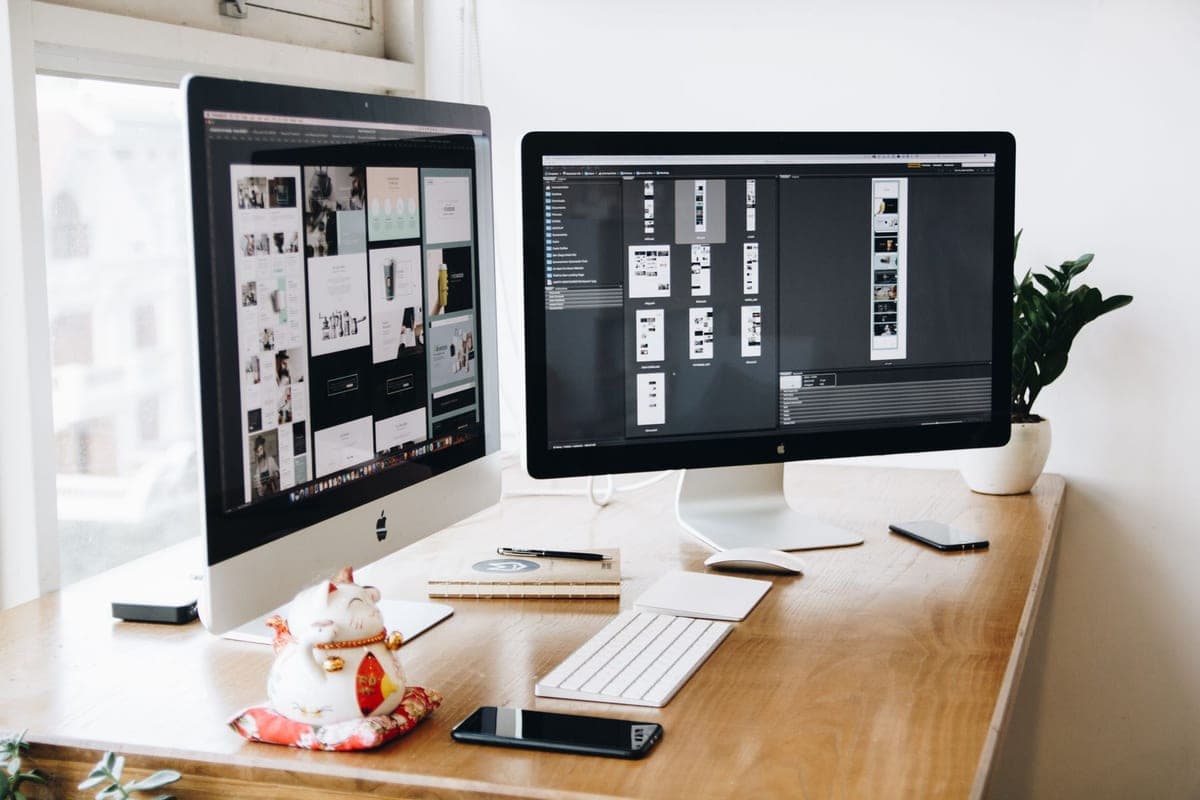
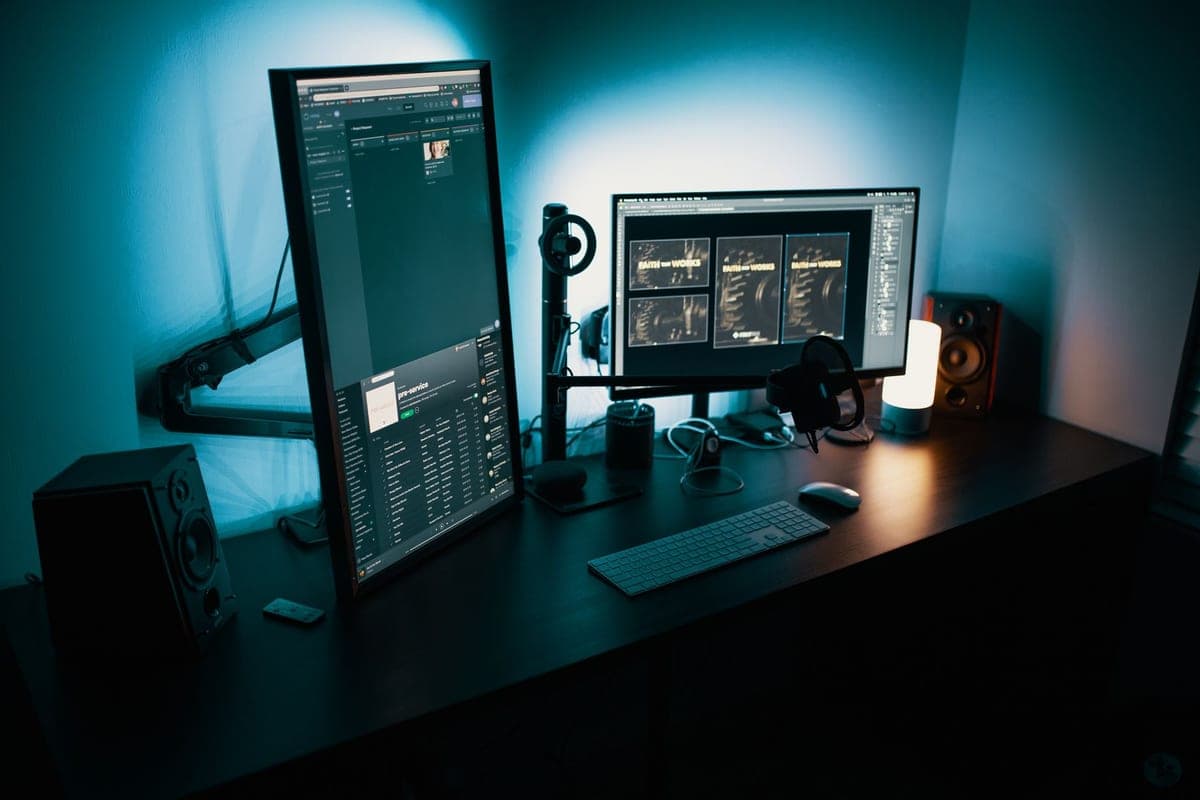
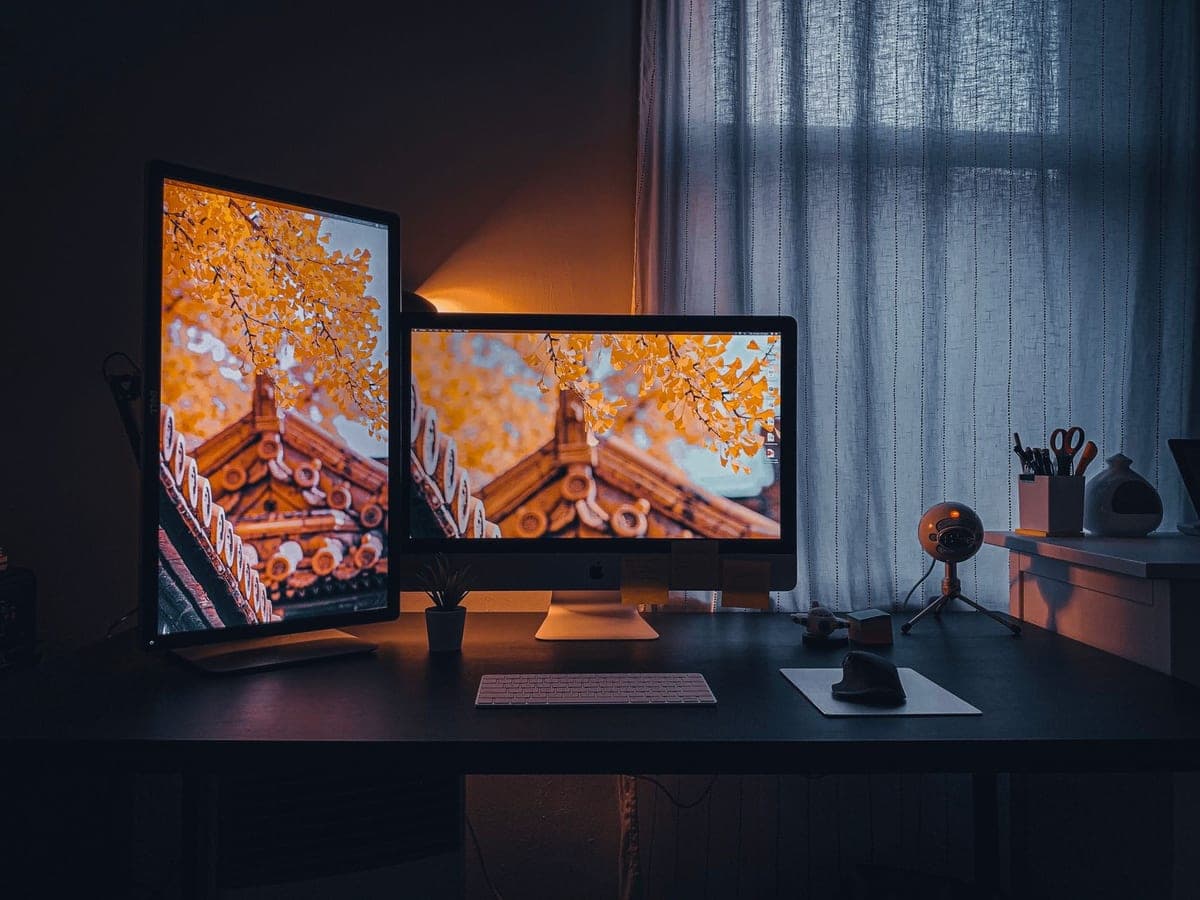
A second monitor is the single most impactful hardware upgrade for productivity. Research consistently shows 20–30% productivity gains from dual-monitor setups because you eliminate constant window switching.
Recommended setups:
- Minimum: 24" 1080p monitor ($120–$180)
- Best value: 27" 1440p IPS monitor ($250–$350) - better color accuracy, less eye strain
- Premium: 32" 4K ($450–$800) - ideal for design and media work
- Ultrawide: 34–49" curved ($400–$1,200) - replaces two monitors in one
Brands worth buying: LG, Dell, ASUS, BenQ (for eye care models)
Ergonomic Chair
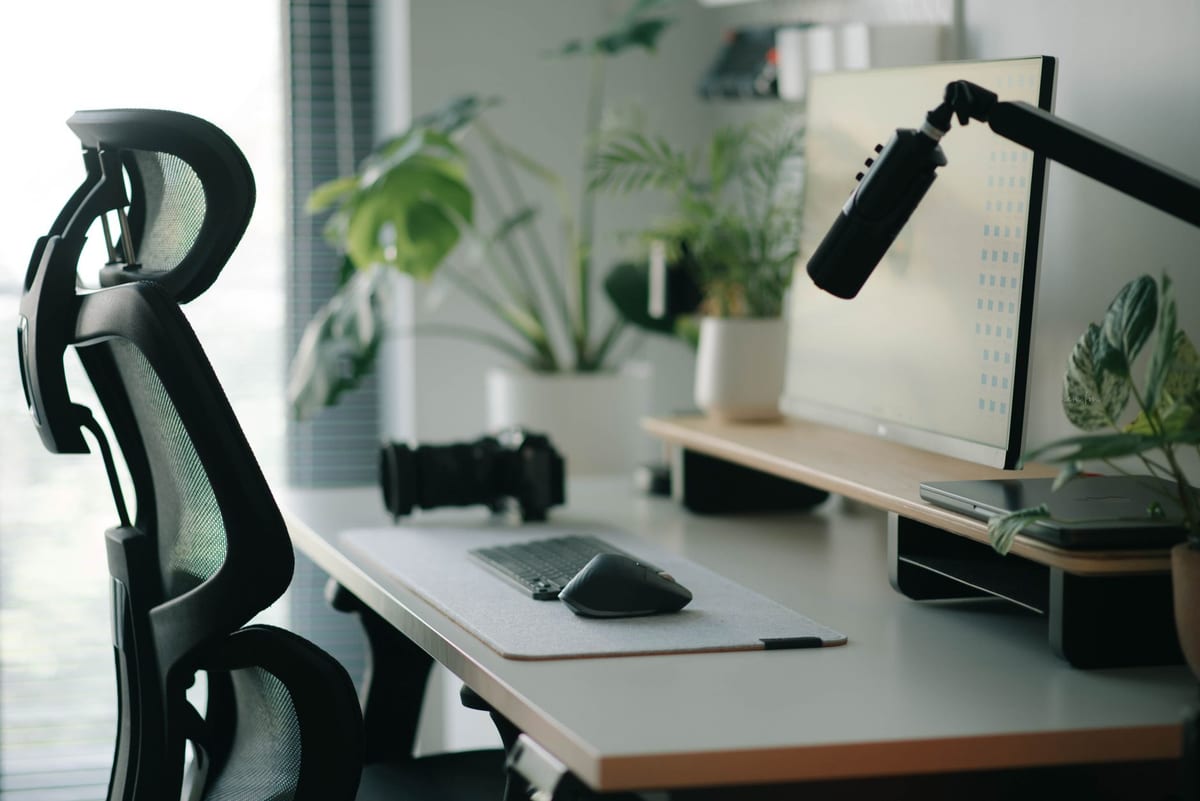
Your chair is your second most important investment. Most back and neck problems that develop in remote workers trace directly to inadequate seating. You are in this chair for 6–10 hours per day.
Key features to look for:
- Adjustable seat height, armrests, and lumbar support
- Breathable mesh back (for all-day comfort)
- Seat depth adjustment (for different body proportions)
Recommended price ranges:
- Budget ($150–$250): IKEA Markus, HON Ignition
- Mid-range ($350–$600): Branch Ergonomic Chair, Steelcase Series 1
- Premium ($800–$1,600): Herman Miller Aeron, Steelcase Leap - worth it if you work 8+ hours daily
Desk
Your desk needs to be large enough to spread out without feeling cramped. Minimum 48" wide for a comfortable single-monitor setup. 60–72" wide if you use dual monitors.
Standing desks are worth considering if you find yourself sedentary for long periods. Alternating between sitting and standing reduces fatigue and improves focus.
Recommended brands: Uplift (standing), Flexispot (value standing), IKEA (budget fixed)
Webcam
The built-in webcam on most laptops produces mediocre video quality that reads as unprofessional in 2026. An external webcam gives noticeably sharper, more flattering video for a modest investment.
| Camera | Resolution | Price | Best For |
|---|---|---|---|
| Logitech C920s | 1080p | $70 | Solid all-around, widely trusted |
| Logitech Brio 4K | 4K | $150 | Premium calls, future-proof |
| Razer Kiyo Pro | 1080p | $130 | Low-light performance |
| Insta360 Link 2 | 4K + AI framing | $200 | Auto-tracks your movement |
Lighting matters more than camera quality. A $70 webcam with good lighting looks better than a $200 camera in a dark room.
Microphone and Headset
Audio quality is more important than video quality for professional calls. People forgive a slightly pixelated video but will disengage from poor, echo-filled audio instantly.
Options by need:
| Option | Price | Best For |
|---|---|---|
| USB headset (Jabra Evolve 40) | $80 | All-day comfort, reliable audio |
| Wireless headset (Sony WH-1000XM5) | $280 | Noise canceling, premium sound |
| USB desk mic (Blue Yeti Nano) | $100 | Studio-quality, no headphones needed |
| Airpods Pro (or equivalent) | $200+ | Mobile flexibility, good ANC |
Avoid using laptop speakers and built-in mics for professional calls - the echo and pickup quality is immediately noticeable.
Keyboard and Mouse
If you are on a laptop, an external keyboard and mouse dramatically reduce fatigue over long sessions by allowing a more natural wrist position.
Recommendations:
- Keyboard: Logitech MX Keys (wireless, great feel) or any mechanical keyboard for tactile feedback
- Mouse: Logitech MX Master 3S - ergonomic shape, quiet click, works on any surface
Part 3: Environment Essentials
Lighting
Good lighting does three things: reduces eye strain, improves your appearance on camera, and signals to your brain that it is "work time."
Natural light is best. Position your desk to face a window if possible - natural light behind your screen or to the side is ideal. Never sit with a window behind you (it backlights you on camera).
For artificial lighting:
- Key light: A ring light or softbox directed at your face for calls ($30–$120)
- Desk lamp: Adjustable color temperature (warm for evening, cool for daytime focus)
- Bias lighting: LED strip behind your monitor to reduce eye strain ($20)
Noise Control
Background noise is the most common professional concern for home workers. Solutions by noise type:
Traffic and environmental noise:
- Noise-canceling headphones eliminate this completely during calls
- Acoustic panels ($15–$50 each) reduce echo in the room itself
Family or household noise:
- A door with a physical lock
- A "Do Not Disturb" sign system that your household respects
- Krisp or NVIDIA RTX Voice (software that removes background noise from your microphone)
Temperature and Air Quality
Research links room temperature between 70–77°F (21–25°C) to peak cognitive performance. Too cold or too warm measurably reduces focus and problem-solving ability.
A small desktop fan, space heater, or air purifier ($50–$150 each) can maintain comfortable conditions in your home office without depending on whole-house climate control.
Part 4: Software Essentials for Remote Work
Communication
| Tool | Use Case | Free? |
|---|---|---|
| Slack | Team messaging, channels | Free tier available |
| Microsoft Teams | Enterprise chat + calls | Included with M365 |
| Discord | Casual team communication | Free |
| Zoom | Video conferencing | Free (40-min limit) |
| Google Meet | Video calls | Free with Google account |
Project Management
| Tool | Best For | Free? |
|---|---|---|
| Notion | All-in-one notes, tasks, wiki | Generous free tier |
| Trello | Visual task boards | Free tier available |
| Asana | Team project tracking | Free for small teams |
| ClickUp | Power users, complex projects | Free tier available |
| Linear | Developers and tech teams | Free for individuals |
Cloud Storage
| Tool | Free Storage | Best For |
|---|---|---|
| Google Drive | 15 GB | Google Workspace users |
| Dropbox | 2 GB | Cross-platform file sharing |
| iCloud | 5 GB | Apple ecosystem |
| OneDrive | 5 GB | Microsoft 365 users |
Time Management
- Toggl Track - Free time tracking to understand where your hours go
- Clockify - Free team time tracking
- RescueTime - Automatic productivity monitoring (shows you where time actually goes)
- Forest - Gamified focus timer (Pomodoro technique)
Security
- VPN: Mullvad, ProtonVPN, or NordVPN - essential when working on public networks
- Password Manager: Bitwarden (free) or 1Password (paid)
- 2FA Authenticator: Google Authenticator or Authy
Work From Home Essentials Shopping List (By Budget)
Starter Setup (~$400–$600)
| Item | Recommended | Budget |
|---|---|---|
| Monitor | 24" 1080p LG | $160 |
| Chair | IKEA Markus | $230 |
| Webcam | Logitech C920s | $70 |
| Headset | Jabra Evolve 20 | $60 |
| Ring light | Basic 10" ring | $30 |
| Ethernet cable | 10ft Cat6 | $10 |
| Total | ~$560 |
Professional Setup (~$1,000–$1,500)
| Item | Recommended | Budget |
|---|---|---|
| Monitor | 27" 1440p Dell | $320 |
| Chair | Branch Ergonomic | $499 |
| Webcam | Logitech Brio 4K | $150 |
| Headset | Sony WH-1000XM5 | $280 |
| Desk mic | Blue Yeti Nano | $100 |
| Key light | Elgato Key Light | $120 |
| Total | ~$1,470 |
Work From Home Habits That Matter as Much as Equipment
The best equipment does not fix poor habits. These routines separate consistently effective remote workers from those who struggle:
- Fixed start and end times - Your brain associates routine with "work mode." Without it, work bleeds into every hour.
- Get dressed - Even casual clothes signal to your brain a transition from rest to work mode.
- Morning ritual - 15–20 minutes of any consistent activity (exercise, reading, coffee) before opening email sets a productive tone.
- Communicate over-deliberately - Remote workers who send regular status updates and respond promptly are perceived as more reliable than office workers who do the same work silently.
- Protect focus time - Block 2–4 hours per day for deep work with notifications off. This is your most productive output.
- End-of-day shutdown ritual - Close all work apps and state aloud (or write down) what you accomplished and the top priority for tomorrow. This creates a mental "clock out."
Final Thoughts
The difference between struggling and thriving as a remote worker comes down to setup quality, not discipline alone. When your chair does not hurt, your internet does not drop, your audio is clear, and your workspace is dedicated - work becomes significantly more sustainable.
Invest in your setup gradually if budget is a constraint. Start with the chair and internet reliability (the most impactful changes), then add the monitor, webcam, and microphone as funds allow.
Related RemoGrid guides:
Frequently Asked Questions
The non-negotiables are: reliable high-speed internet (50 Mbps or faster), a dedicated workspace separate from your living area, a quality webcam and microphone for video calls, a comfortable ergonomic chair, a second monitor, and noise-canceling headphones. Everything else builds on this foundation.
A functional home office setup can cost anywhere from $300 to $2,000+ depending on quality. A solid beginner setup — monitor, desk, ergonomic chair, webcam, and headset — runs $500–$800. A premium setup with standing desk, high-end monitor, and professional lighting runs $1,500–$3,000. Many employers provide equipment stipends of $500–$2,000.
For most remote workers, 50 Mbps download speed is the minimum for comfortable use. If you regularly do video calls (Zoom, Teams), share large files, or work with cloud software, aim for 100 Mbps or higher. For households with multiple people working or streaming simultaneously, 250–500 Mbps prevents bottlenecks.
The core toolkit: a communication tool (Slack or Teams), video conferencing (Zoom or Google Meet), project management (Asana, Trello, or Notion), cloud storage (Google Drive or Dropbox), and a VPN for security. Most remote employers provide licenses for these tools.
Stick to consistent start and end times, dress as if going to work, keep your workspace separate from relaxation areas, use time-blocking to structure deep work sessions, take proper breaks away from screens, and communicate proactively with your team about your availability and progress.
Legitimate remote employers will never ask candidates to pay for training, background checks, software licenses, or equipment shipping. Any listing requesting upfront money or cryptocurrency is a scam.
A reliable laptop or desktop, a stable internet connection with backup mobile hotspot data, a noise-canceling headset for calls, and basic familiarity with tools like Slack, Google Workspace, and Zoom.

Alex Morgan is the founder and lead editor of RemoGrid. With over six years of hands-on experience in remote operations, cross-border freelance workflows, and AI tool benchmarking, Alex independently tests and audits software platforms to help modern digital workers build sustainable online income streams. He regularly reviews international payment systems (Wise, Stripe, Payoneer, local mobile wallets) and conducts real-world usability benchmarks across AI productivity tools.